Setup Guide
Get Rimo working in your Slack workspace in minutes.
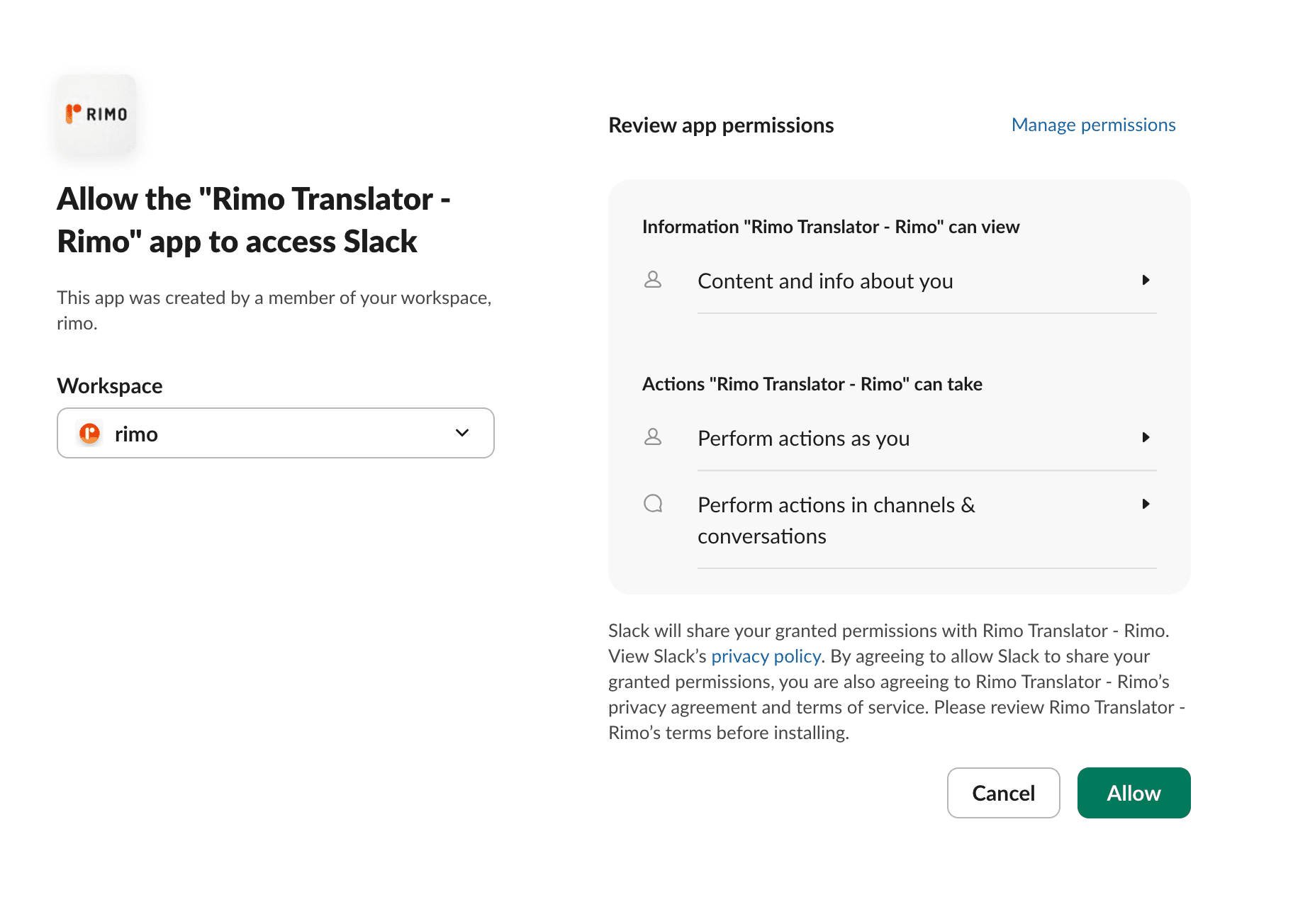
Install Rimo
Authorize the app
⚠️ Installing alone doesn't translate anything yet
Two more steps are required: invite the bot to the channel you want translated (step 3), then switch auto-translation on for that channel (step 4).
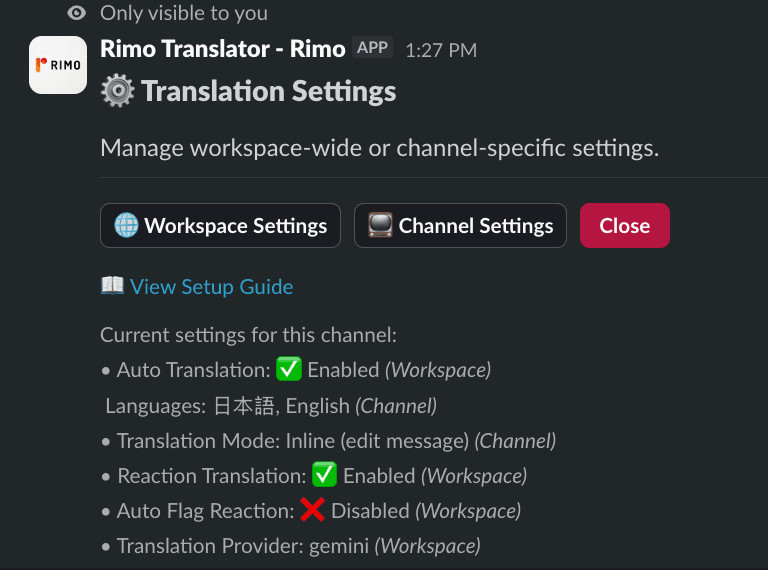
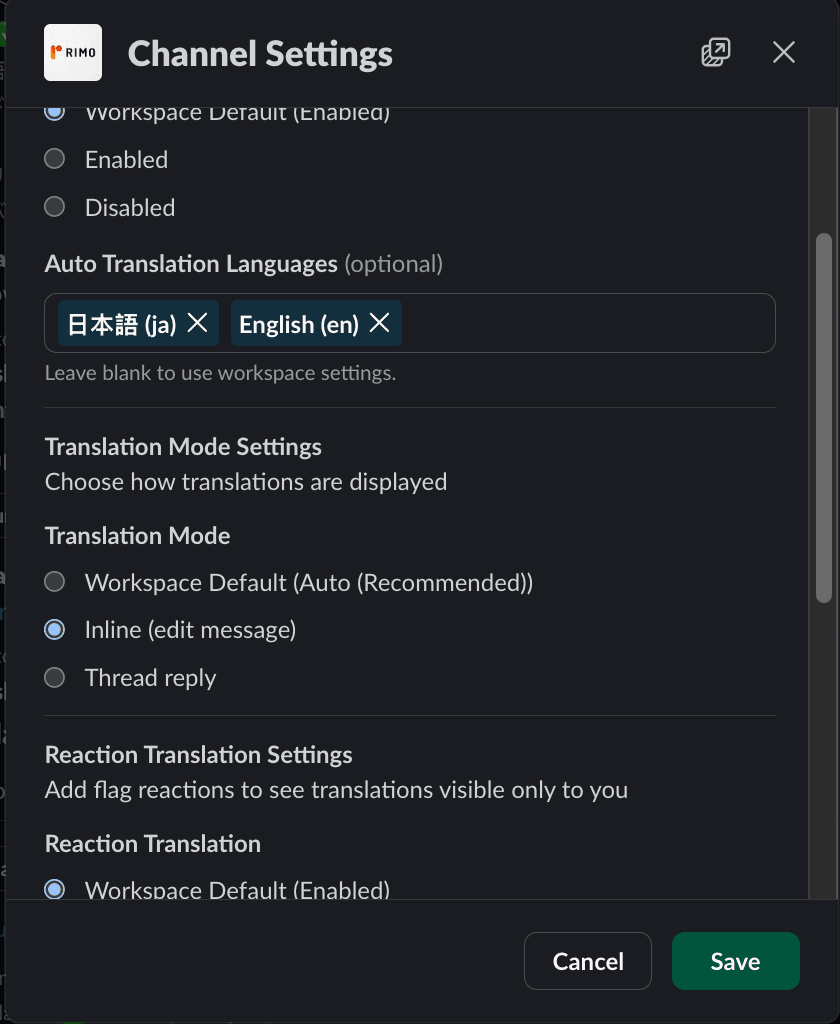
Open channel settings
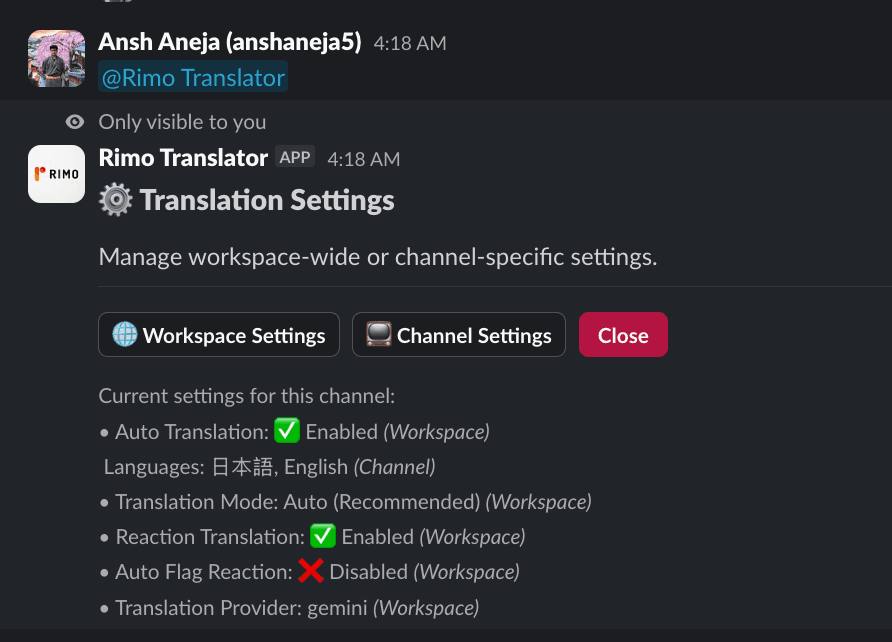
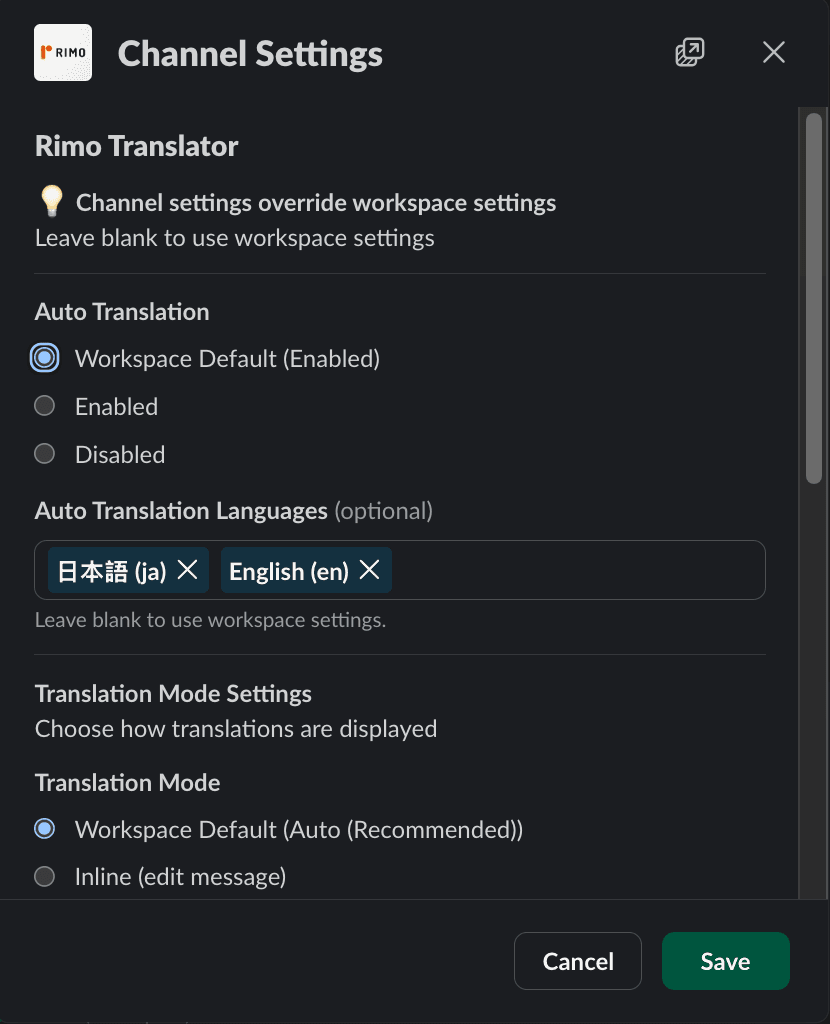
Enable auto-translate for a channel
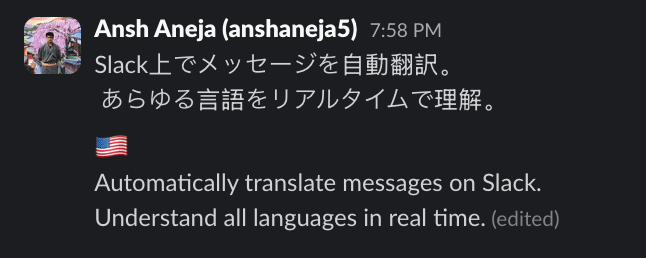
See auto-translate in action
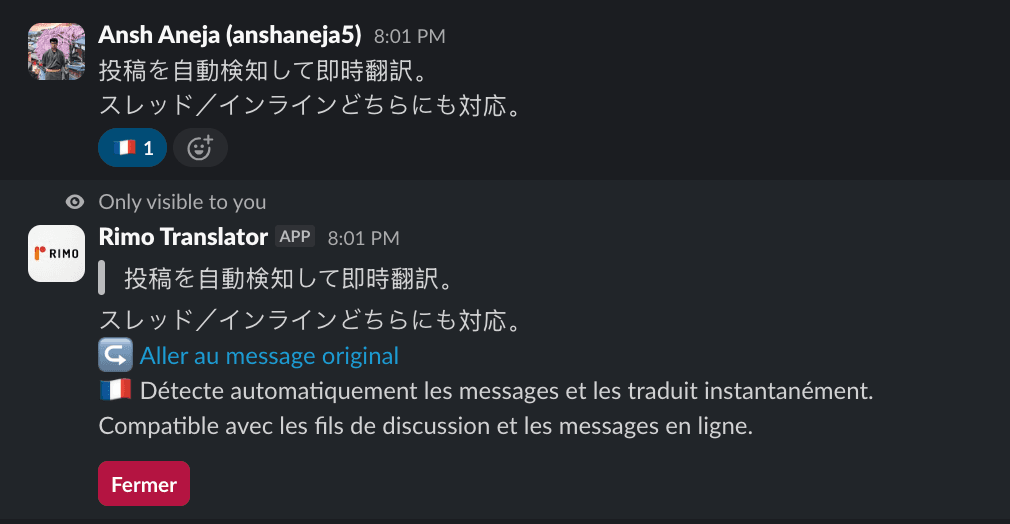
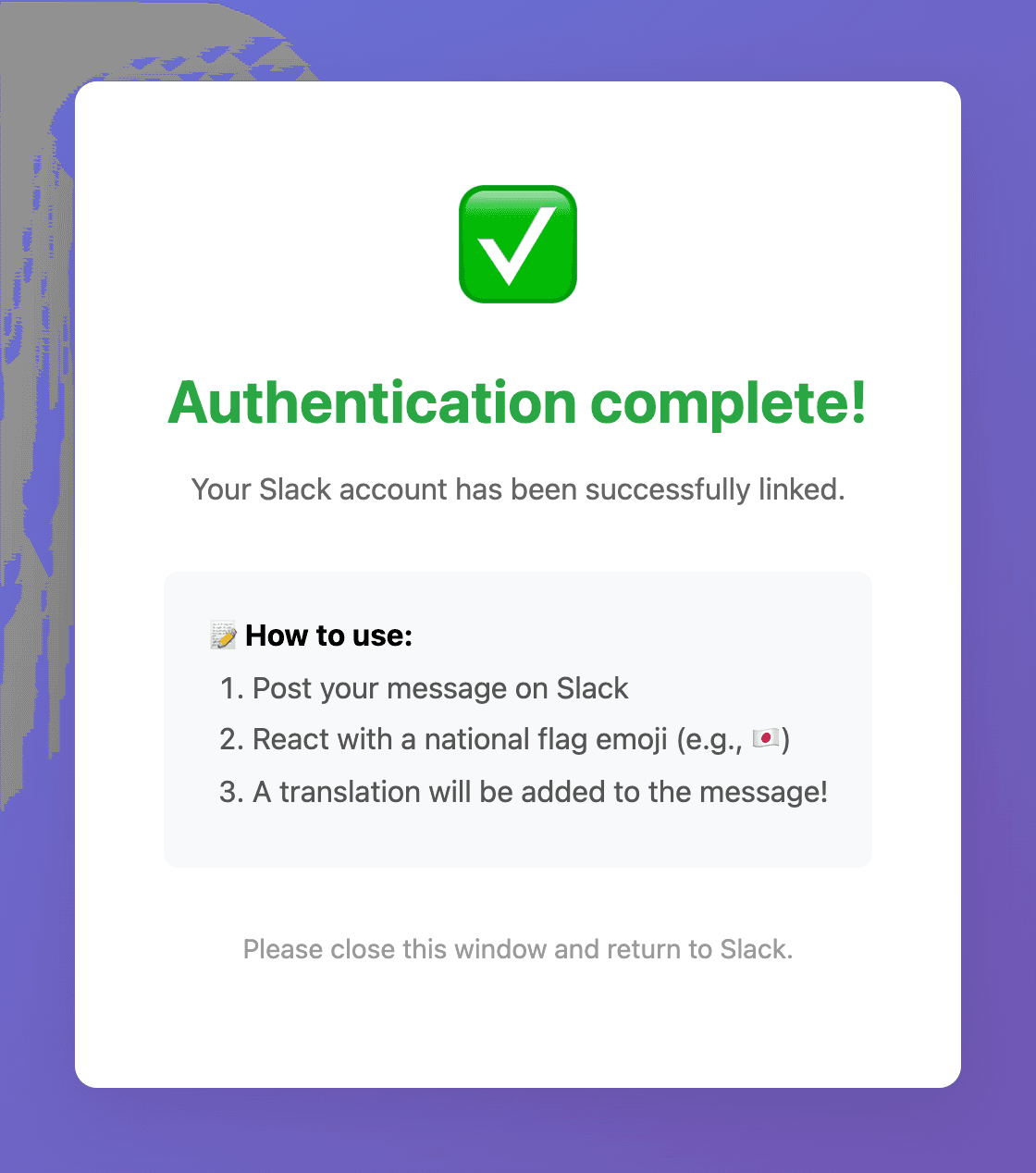
Use reaction translate
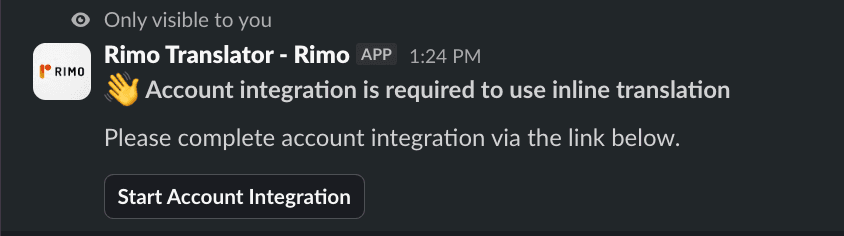
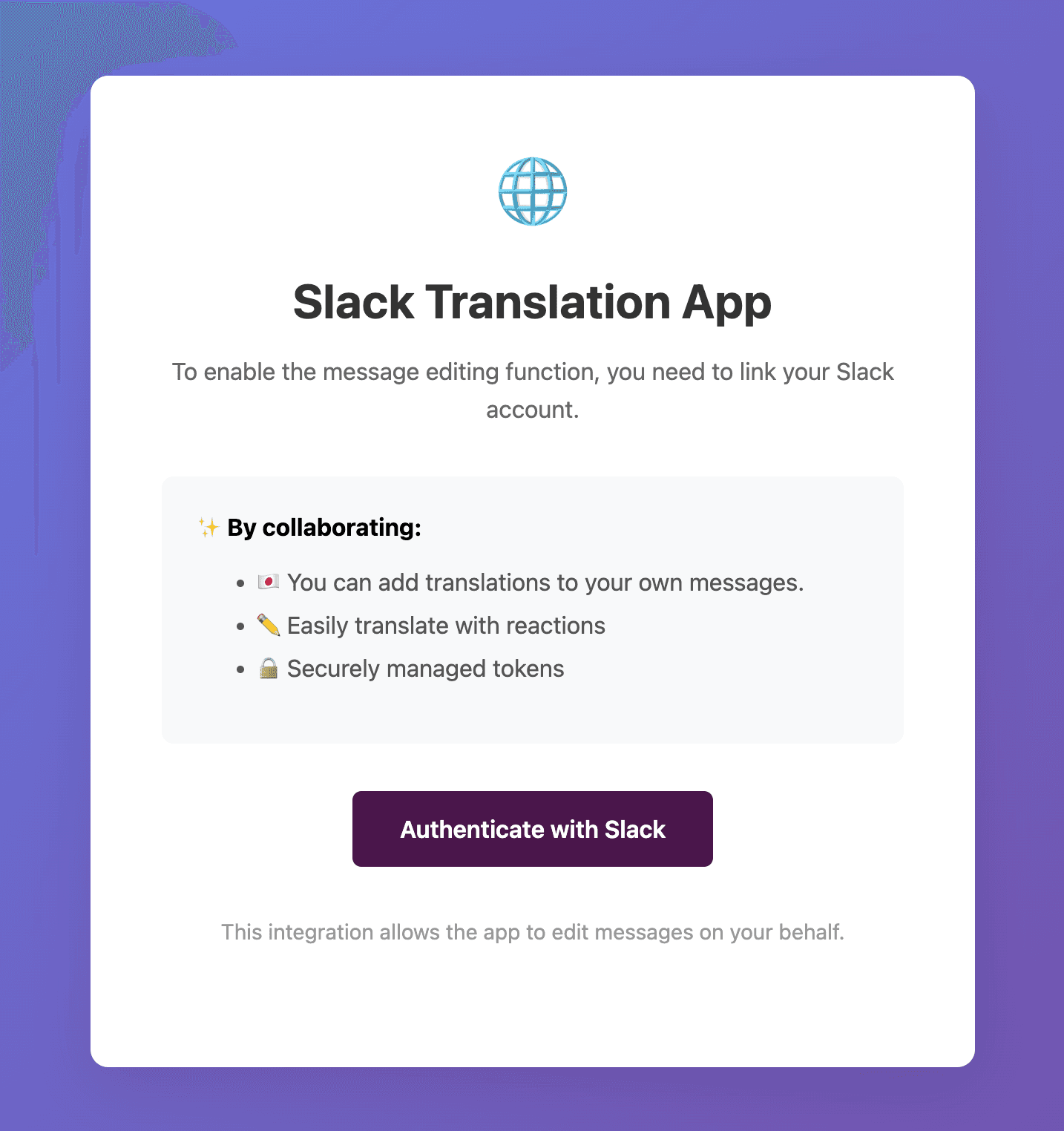
Link your account to add translations to your messages
OptionalHow to link your account:
Translations not appearing?
Did you invite the bot to the channel?
Type @Rimo Translator in the channel and choose “Add to channel” (or use /invite @Rimo Translator). Rimo only works in channels it has been invited to — public and private alike.
Is auto-translation switched on for that channel?
Auto-translation is configured per channel. Send @Rimo Translator in the channel to open the settings panel, enable Auto Translation, and pick target languages.
Have you hit the monthly character limit?
The Free plan includes 20,000 characters per month. Check your usage in the Rimo app’s Home tab in Slack — when the limit is reached, auto-translation pauses until the next month.
Still stuck?
Email translator-support@rimo.app — including your workspace name and the channel you’re configuring speeds things up.